
Sable / Guide
The Sable guide
Everything you need to set up Sable and keep your hands on the story. The same guide is included in the app as an editable Markdown file.
This guide is written by Claude Code.
- Screenshots
- Your writing folder
- The writing desk
- Fiction Projects
- Export
- A little Markdown
- Keyboard shortcuts
- A quiet writing space
- A file beside your draft
- How Sable protects your files
- Updates
Screenshots
Your writing folder
Your words live in ordinary Markdown files. They are plain text, so you can open them in other editors and keep them in a folder you control.
Choose a writing folder during setup. iCloud Drive, Dropbox, or OneDrive work well if you want your writing on other devices; your cloud service handles synchronization, so let it finish before editing the same file elsewhere. New documents can be saved anywhere with ⌘S. The status at the bottom confirms when a save completes; that confirms the local file, not cloud syncing.
The writing desk
The desk on the left has two tabs: Files and your Outline. Click a file to open it in the same window. Sable asks you to save or discard unsaved changes first.
- Create. The + button makes a new file or folder. Control-click a folder to create inside it.
- Rearrange. Drag files and folders onto folders to nest them. Drop on the path above the list to move things back up.
- Rename and trash. Control-click for Rename and Move to Trash. An Undo appears right after trashing.
- Colors and pins. Give any file or folder a color or pin it to the top. Name your colors (Draft, Revised, Final) in the list options. Chips above the list filter by color or pin.
- Focus. Control-click a folder and choose Focus on This Folder to see only that folder. The path above the list takes you back out.
- Search. The search box looks through every folder beneath the one you’re viewing, not only the ones that are open. It matches names, not the text inside files.
- Keyboard. Arrow keys move through the list, → and ← open and close folders, Return opens, ⇧Return renames, ⌘Delete moves to the Trash.
- Make it yours. The sliders button sets sorting, icons, file extensions, last-modified dates, word counts, and compact rows. Drag the desk’s right edge to resize it.
The Outline tab turns your # headings into a list you can name Chapters, Scenes, Episodes, or anything else, and filter to one heading level. This changes the sidebar only, never your headings.
Fiction Projects
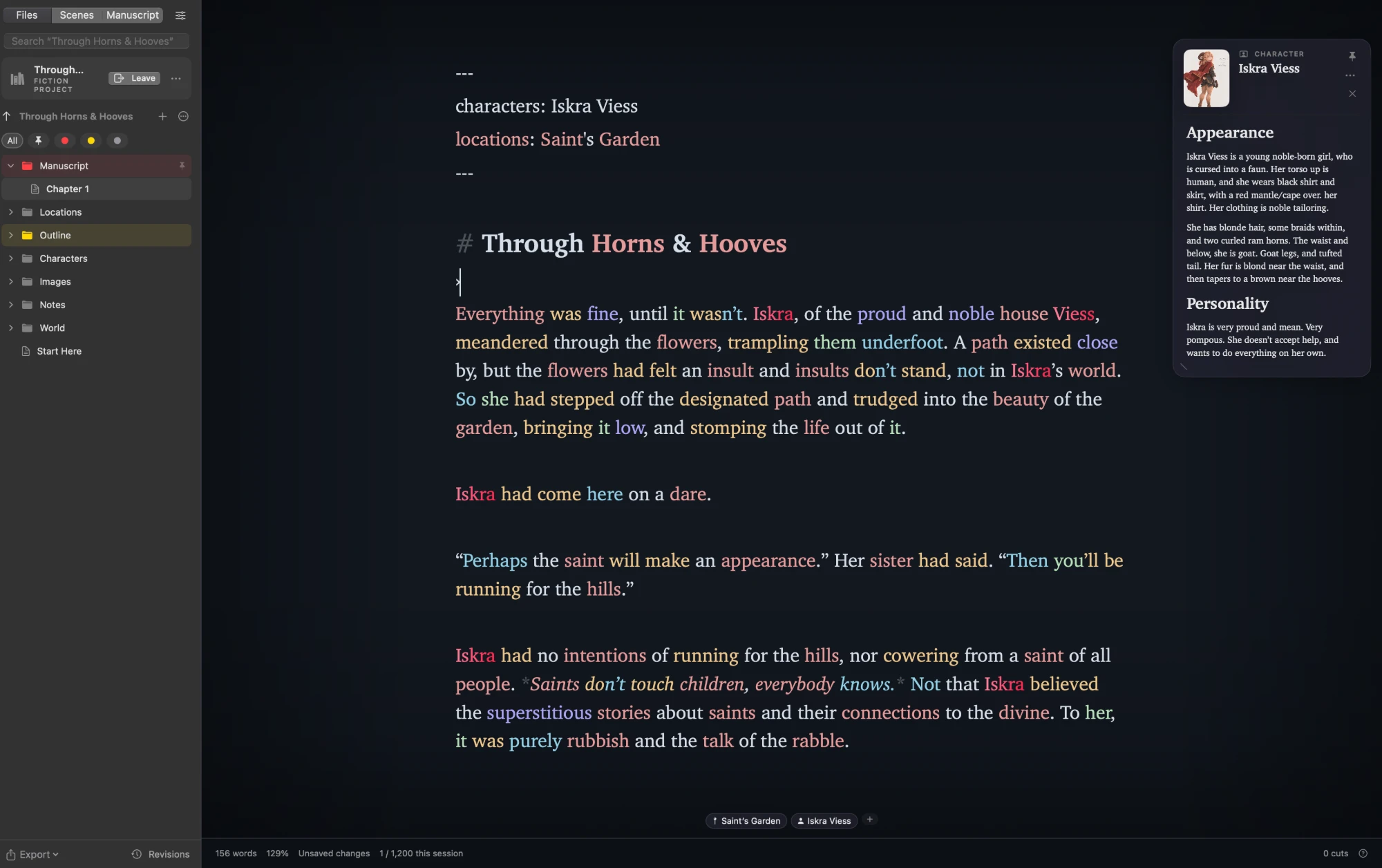
A Fiction Project gives one story a clear home while keeping every part portable. Choose New Fiction Project from the + menu and Sable creates folders for Manuscript, Characters, Locations, World, Notes, and Images. You can also turn a folder you already have into a project without moving or renaming anything in it.
Projects sit above ordinary folders in the desk. Character, location, and world-note files can open as small cards beside the page, so the detail you need stays close without becoming another writing tab. Add a portrait, pin a card open, or let it collapse to a quiet tab.
Scene tags connect a chapter to its characters, locations, and world notes. The small strip fades while you type and opens the relevant card with a click. The Manuscript tab shows total words, an optional goal, and chapter lengths; drag a chapter to reorder the reading sequence without changing its filename.
Export a manuscript
On a Fiction Project’s Manuscript tab, choose Export… or press ⇧⌘E to turn the chapters in your chosen order into one PDF, EPUB, Word, or Markdown file. Pick the chapters, add a title page, and choose a Manuscript look for submissions or a Book look for reading. File → Export This Document… exports only the page you have open.
A little Markdown
Use **two asterisks** for bold and *one* for italics. Start a line with # for a heading, or ## for a smaller one. A dash starts a list item, a blank line starts a new paragraph, and a greater-than sign starts a quotation. Use backticks for inline code and two tildes for ~~strikethrough~~.
Keyboard shortcuts
| Shortcut | What it does |
|---|---|
| ⌘N | New document |
| ⌘O | Open a file |
| ⌘S | Save |
| ⌘B | Bold |
| ⌘I | Italic |
| ⌘K | Insert a link |
| ⇧⌘H | Heading |
| Tab or Esc | Move past closing formatting marks |
| ⌘\ | Leave formatting |
| Return | Leave formatting and start a new line |
| ⌘F | Find in the manuscript |
| ⇧⌘F | Paragraph focus |
| ⇧⌘R | Switch between writing and reading mode |
| ⌃⌘S | Show or hide the writing desk |
| ⌥⌘T | Show or hide the toolbar |
| ⌥⌘, | Fonts, themes, and writing style |
| ⌥⌘J | Sentence-structure colors |
| ⌘ + / ⌘ − | Zoom in or out |
| ⌘0 | Reset zoom to 100% |
Pinch the trackpad to zoom; you can turn that off in Writing Style. With a mouse, hold ⌘ and turn the scroll wheel: away from you zooms in, toward you zooms out. A two-finger horizontal swipe shows or hides the writing desk. Zoom changes the display, never your Markdown.
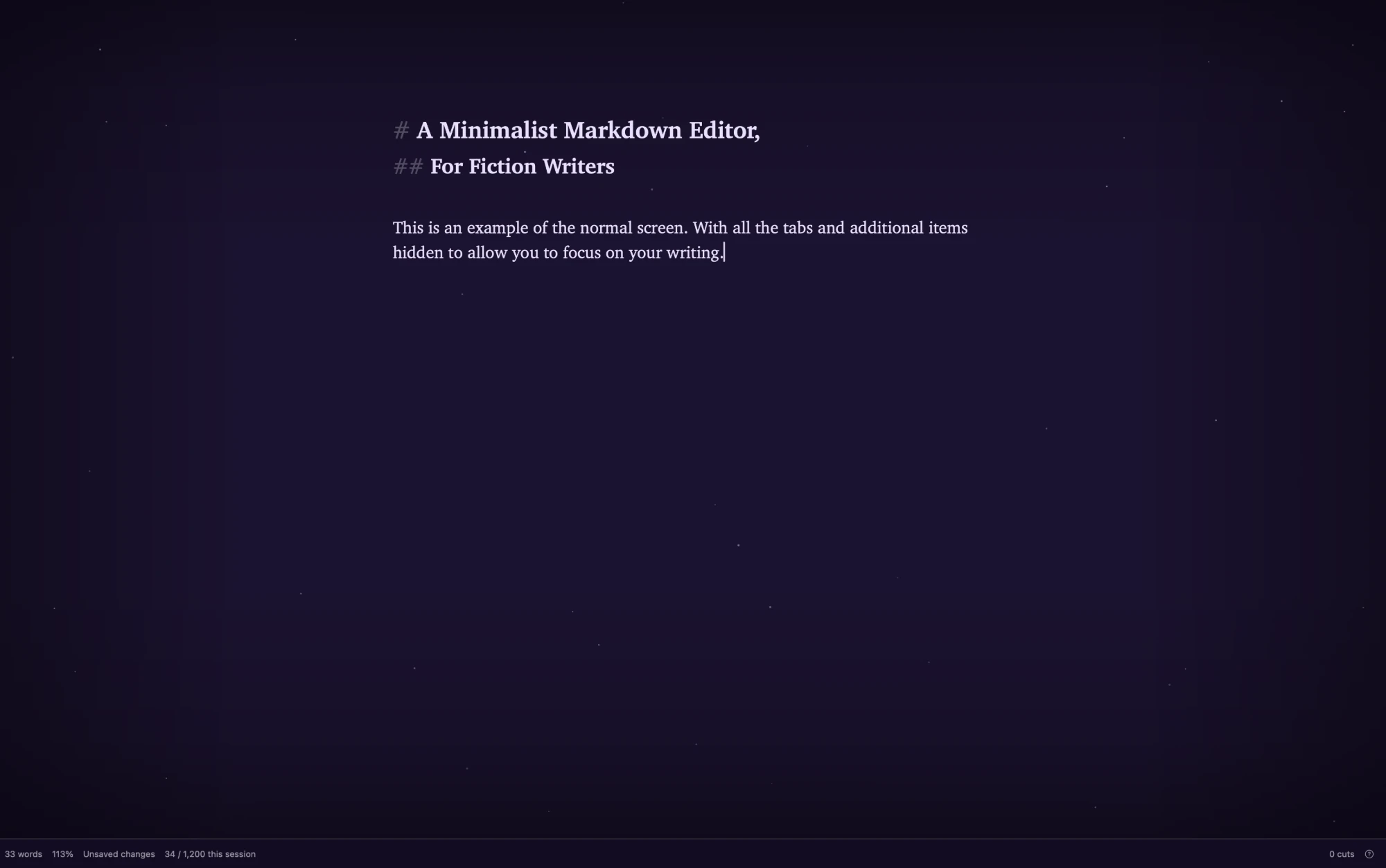
A quiet writing space
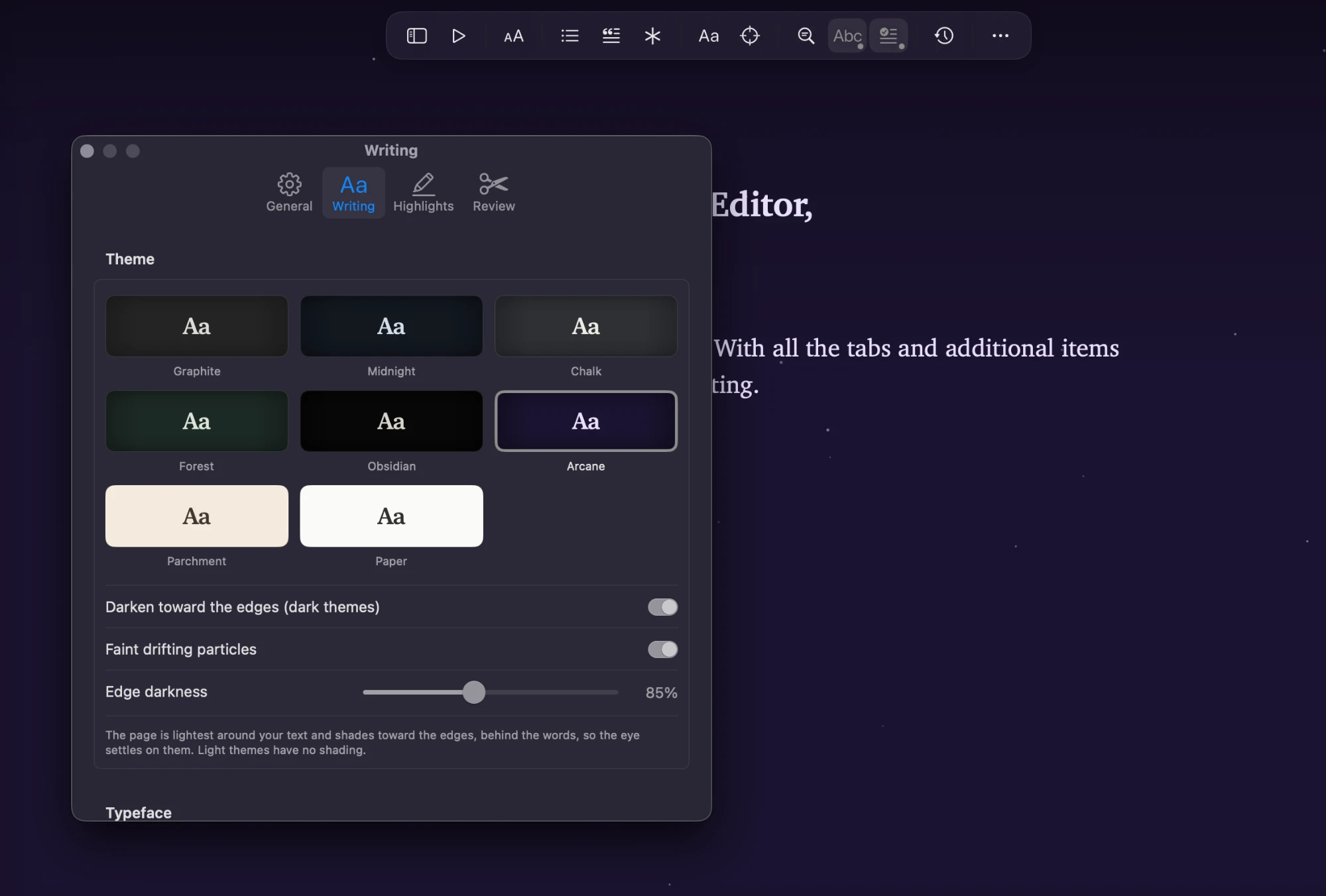
Try Graphite, Midnight, Chalk, Forest, Obsidian, Arcane, Parchment, or Paper in Writing Style. Chalk is a dark slate with a softer edge that draws the eye toward the page. Pick one of five writing fonts or choose your own. The toolbar slides in when you move the pointer near its edge and never shifts your page. Put it on the top, left, or right, keep it visible, or turn it off entirely with ⌥⌘T.
Paragraph focus dims surrounding paragraphs. Reading mode hides Markdown marks. Prose suggestions cross out possible cuts only on screen, and you control the word list in Settings. Name highlights can softly mark character, location, and world-note names; each kind can be enabled separately in Settings. Sentence structure colors nouns, verbs, and other word classes on your Mac. None of these display features changes your saved text.
A file beside your draft
Control-click any Markdown file in the writing desk and choose Open Beside Current Document, or click the small split-pane icon that appears when you hover a file. It opens as a formatted reading view next to your draft. Choose Edit to work on it in place, then Read to return to the clean view. It’s handy for a character sheet or a map of the world while you write a chapter.
How Sable protects your files
- All or nothing. When Sable rewrites a file, it writes the new version beside the old one and swaps them in a single step. If the disk fills up or your Mac stops halfway, the old file is still whole.
- A snapshot before big changes. Find & Replace in Project and every restore from Revision History save a safety snapshot first. If that snapshot can’t be saved, nothing is changed.
- Undo that won’t erase newer words. Undo Replace puts back only files that still read exactly as the replacement left them. Anything you changed afterwards is left alone, and Sable tells you which files those were.
- Files open beside your draft. When Find & Replace or a restore touches a file that’s open beside your draft, that file saves your latest words first and then shows the new text. If the file changes somewhere else (another app, or another Mac through iCloud or Dropbox) while you have edits beside your draft, Sable doesn’t save over it. Choose Keep Mine or Use Saved File; the version you don’t keep goes to the Trash as a copy.
- Exports never replace your writing. An export can’t be saved over the files it was made from, over a file that’s open in Sable, or inside the Manuscript folder. If it replaces some other file, that file goes to the Trash as a copy first.
- If an open file is trashed or deleted. When a file you have open is moved to the Trash or deleted outside Sable, a note appears under the page or in the side pane. For a trashed file, Put Back returns it to its folder. For a deleted one, Save Again writes it back where it was. Save As… keeps it somewhere else. Without one of these, Sable keeps saving a trashed file into the Trash, where emptying the Trash would delete it. The writing desk won’t move a file to the Trash while it’s open in another window.
- Nothing is deleted outright. Move to Trash sends files to the macOS Trash, with Undo right afterward. Import always makes a new file. The only things Sable deletes are snapshots: when you delete one, and daily snapshots older than the latest 20.
- Files that aren’t downloaded yet. If iCloud is set to Optimize Mac Storage and a file hasn’t been downloaded, Sable downloads it when it’s opened, searched, or saved in a snapshot. While you’re offline it can’t be read: Sable shows an error and leaves the file alone, and Revision History may list it as deleted. Restores stop until it can be read.
Updates
Sable checks for updates while it’s open: every day, every 3 days, or every week, as you choose in Settings → General, where you can also turn automatic checks off. Check for Updates… in the Sable Markdown Writer menu checks right away. Either way, you choose when to install and restart. Get beta updates, off by default, also offers early builds published ahead of a stable release; they may be rougher. If you turn it off again, you keep the build you have until a newer stable release arrives.
Missing something? Tell us on GitHub, or download Sable.